
Starter
Job & Day Timeline
The wedding day, planned hour by hour — and shared with everyone
Build the schedule of the day inside the job: prep, ceremony, portraits, party. Share it as a live link or a PDF with couples, planners, and vendors.
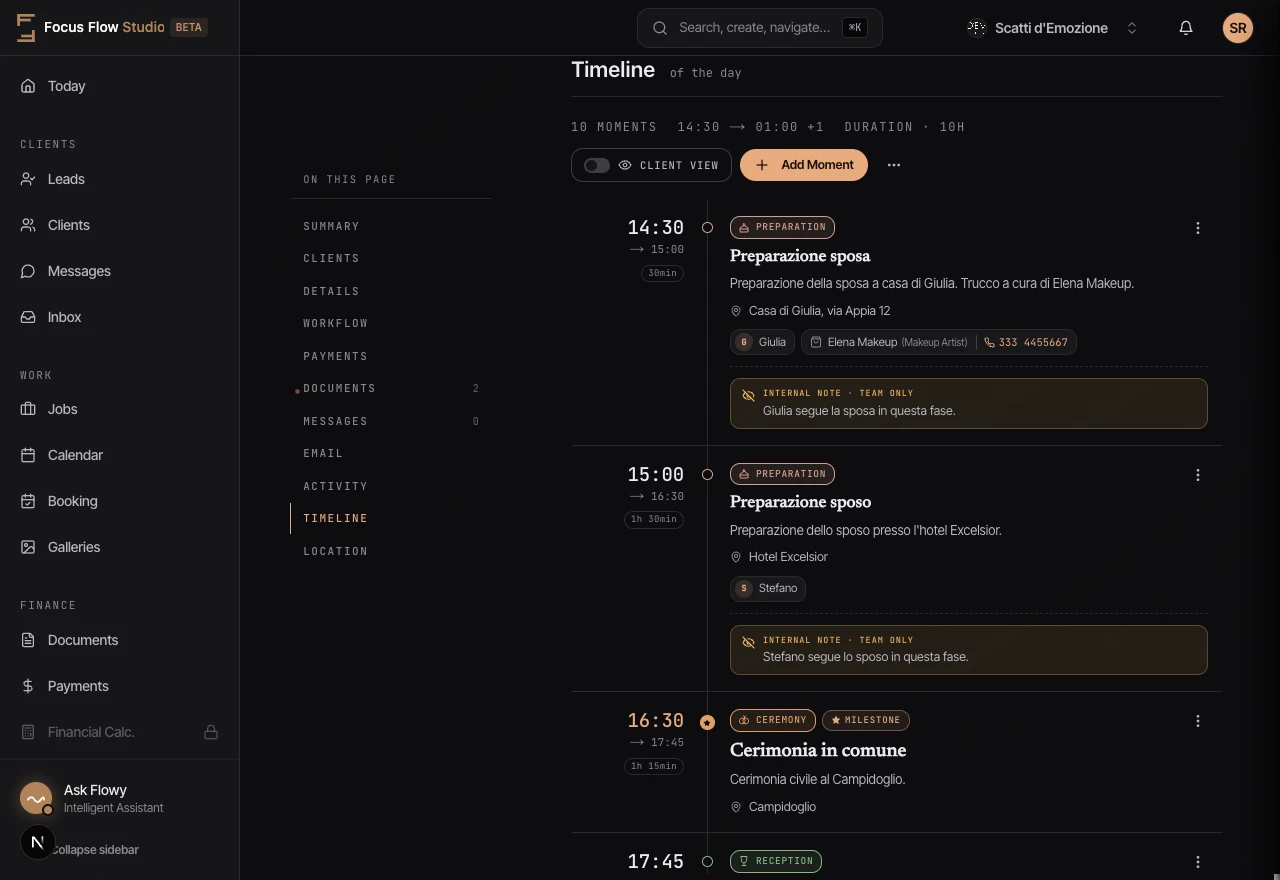
The wedding day, planned hour by hour — and shared with everyone
Build the schedule of the day inside the job: prep, ceremony, portraits, party. Share it as a live link or a PDF with couples, planners, and vendors.
The day plan lives in a WhatsApp thread, three emails, and someone's head. On the day, nobody has the same version — and the version you send the couple can't contain your team's positioning notes.
One timeline attached to the job, in two versions: a clean live link and PDF for the couple, and a team call sheet — with internal notes, positioning instructions, vendor phone numbers and team-only moments — shared as a secret link with your second shooter and videographer, no account needed.
Everyone shows up in the right place at the right time — you shoot instead of coordinating.
Hour-by-Hour Plan
Every moment in strict chronological order — even past midnight, with the DJ set at 00:30 marked "+1" at the end of the day, never at the top.
Two Versions, One Timeline
A clean live link for couples and guests, and a team call-sheet link with instructions, team-only moments and tap-to-call vendor numbers.
Client PDF & Team Call Sheet
Export a clean schedule for the couple, or the team call sheet with internal notes and a vendor contact sheet — in six languages.
Templates, Voice & Claude
Save your best schedules as templates — and fix the day hands-free: "move the cake cutting to 22:30 and shift the rest" works from Flowy Voice or the Claude app on your phone, preview and confirmation included.
Wedding Day
The Challenge: Planner, videographer, and couple each have a different version of the schedule
The Result: One live link — everyone sees the same, always-current timeline
Second Shooter & Videographer
The Challenge: Your team needs positioning notes and vendor phones the couple must never see
The Result: A secret team link and call-sheet PDF with internal instructions — no app account needed
Repeat Workflows
The Challenge: Rebuilding the same schedule for every wedding
The Result: Apply your saved template and only adjust the times
Open the job's Timeline tab and add items hour by hour: prep, ceremony, portraits, party. Each item needs only a start time and a title, and can also carry an end time, location, vendor info, and separate internal and client notes. Items sort by time, giving you the full wedding day timeline in order.
Yes. The timeline publishes as a read-only live link that couples, planners, and vendors open on any device, always showing the latest version so nobody works from an outdated copy. You can also export a printable PDF in one click for the day-of team who prefer paper.
Yes. Save any job's timeline as a reusable template, then apply it to the next job in one click and just adjust the times. It works as a wedding timeline template for your standard day, and you can keep several templates for different event types. Only your own templates and system templates are available.
Each timeline item has two separate note fields. Internal notes stay private to you and your team, while client notes appear on the shared live link and PDF. This lets you keep shot-list reminders or logistics hidden while still giving the couple and vendors the details they need for each moment of the day.
Copy the team link from the timeline menu. It opens the same mobile-first live page, but unlocked as a call sheet: internal notes, team-only moments, tap-to-call vendor numbers and the live "now" indicator. The link carries a secret per-job key, so it works for anyone you send it to — no account required — while the regular client link stays clean.
Mark them "After Midnight (+1)". They sort at the end of the day where they belong — never before the morning prep — and show a "+1" day marker on the live link and in both PDFs. The live "now" indicator keeps tracking the schedule correctly past midnight.
Yes. Tell Flowy Voice "move the cake cutting to 22:30 and shift the rest": it reads the change back — which moments move and to what times — and applies it only after you confirm out loud. The same works from the Claude app on your phone through the Focus Flow Studio connector: Claude shows the preview and asks before touching anything. Adding, removing or editing moments goes through the Flowy chat with the same preview-and-approve flow.
Start your 14-day free trial and run your whole studio in one place.